How to add Web Stories (tap-to-view fullscreen circles) in Blogger
The "stories" format of tap-to-view fullscreen circles we know from Instagram and Facebook is a presentation users love and understand instantly. BlogKub brings this format to Blogger by pulling your own posts to show as stories automatically. This article teaches you how to set it up from start to finish, along with the engagement reasoning and how to fix problems.
Quick summary: add the Stories (Web Stories) block in BlogKub, set the count, label, and time per slide, then Export the XML and upload it to Blogger. The system shows story circles from your latest posts, tapped to view fullscreen with auto-advance, with a progress bar, previous/next buttons, and a read article button, pulling from your own Blogger feed with no separate story uploads.
What Web Stories as circles are
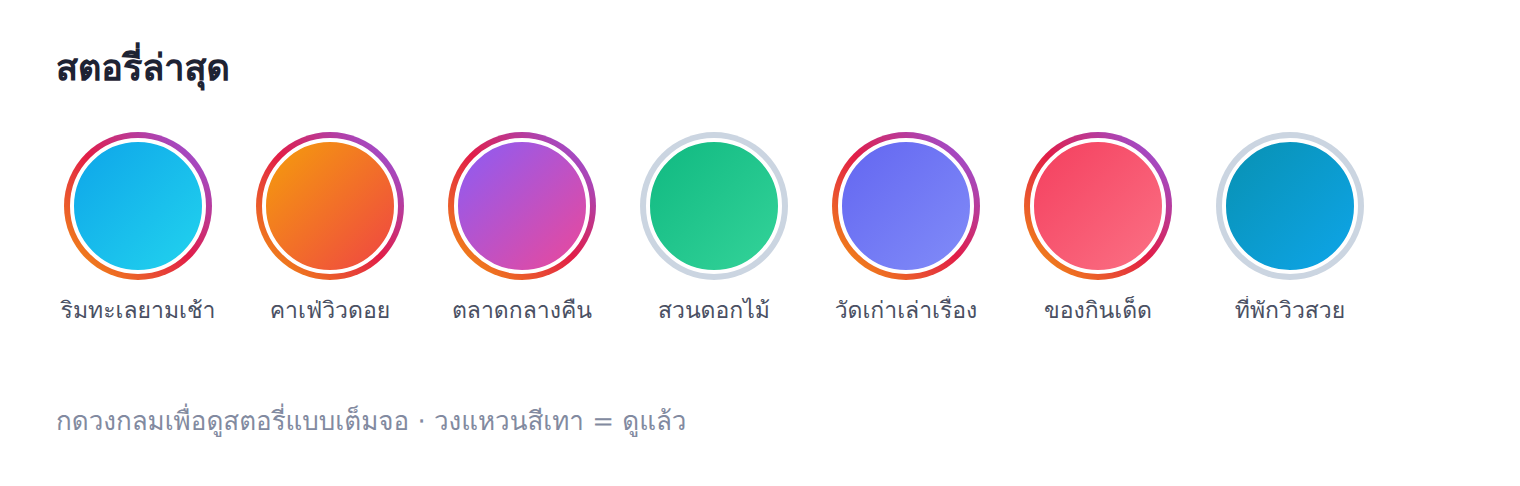
Web Stories in this context are a bar of circular post cover images placed at the top of the page. When tapped, a fullscreen view opens showing the image and title one slide at a time, with auto-advance, like viewing stories on social media. This format is powerful because today's users are deeply familiar with it and need to learn nothing new. They instinctively know to tap to view, tap left to go back, and tap right to skip.
What makes this feature special on BlogKub is that it pulls your own posts to show automatically. You do not create or upload stories separately like standard Web Stories that require separate AMP pages. Instead, the system takes the cover image and title of the posts you have already published and wraps them into stories, giving a story experience with almost no extra work.
How the stories pull data from the Blogger feed
The heart of this feature is using the Blogger post feed (the JSON feed system Blogger provides built-in). When the page loads, the system calls the latest posts feed for the number you set, pulls the cover image and title of each post to build the story circles, and when a reader taps to view, the system shows a larger version of the image in the fullscreen view, with a link to the real article.
Because it works with the feed directly, your stories update themselves automatically. Every time you publish a new post, it appears in the stories without you editing the theme or adding anything. This is a key advantage over building fixed stories that must be updated by hand each time.
How to add Web Stories in BlogKub step by step
- Add the stories block. Open the left block library and drag the "Stories (Web Stories)" block into the page, usually near the top of the homepage so it is seen before other content.
- Set the count, label, and time per slide. Set the number of stories to show, add a label if you want to pull only certain categories, and set the time each slide shows before auto-advancing (default around 5 seconds).
- Export the XML and upload. Click Export, then take the file to blogger.com → Theme → three-dot menu → Backup/Restore → select the XML file.
- Test opening the stories. Open the live site, tap a story circle to view fullscreen, check the auto-advance, the top progress bar, the previous/next buttons, closing, and the read article button.
Elements of the fullscreen story view
When a reader taps a story circle, the fullscreen view opens with elements designed to be familiar and easy to use.
- Top progress bar: shows which slide out of the total you are viewing and the remaining time of the current slide, exactly like stories on social media.
- Fullscreen image: a larger version of the post cover image, filling the screen, giving an immersive feel.
- Title and date: the post title and publish date at the bottom, helping readers know what they are viewing.
- Read article button: a button that goes to the full article, turning "viewing a story" into "actually reading".
- Navigation: tap the left side to go back, the right side to skip, a close button in the top right, and keyboard arrow key support for desktop users.
The "viewed/unviewed" ring: a familiar detail
The small detail that makes this feature feel like real stories is the colored ring around the circle. An unviewed story has a bright gradient ring, while a viewed story's ring turns gray, like we see on social apps. The system remembers this state in the reader's browser, so they instantly know which stories they have not yet viewed.
This detail may seem minor, but it is what creates "familiarity", which is the key to a good experience. When everything works as users expect from social stories, they use it smoothly without thinking, and that makes them willing to explore more of your posts.
Web Stories, engagement, and content discovery
The classic blog problem is that readers often come to read one article and leave, without knowing you have much more good content. Web Stories solve this in a fun way, because they invite readers to "swipe" through several posts quickly in an enjoyable format. When they find a topic of interest, they tap the read article button to read it in full.
The result is that readers explore more of your content, stay on the site longer, and have a chance of finding an article that resonates until they become regular readers. Used together with other discovery elements such as related articles that recommend nearby topics and bookmarks to save for later, your site systematically turns passing visitors into engaged readers.
Performance considerations
Because the stories pull data from the feed when the page loads, you should set a reasonable number of stories, not more than necessary. Showing around 6 to 10 stories is usually just right for both interest and speed. The images used in the circles are small thumbnails, so they load fast, while the large images in the fullscreen view load only when a reader taps to view.
This approach keeps the feature beautiful without affecting homepage speed much. That said, choosing post cover images with suitable file sizes also helps both the stories and the overall page load fast, which is good for both readers and Core Web Vitals scores.
Examples of using Web Stories in different kinds of blogs
- Travel blogs: stories full of beautiful destination images invite swiping and tapping into full reviews, ideal for image-led content.
- Food and cafe blogs: images of menus and the atmosphere in story format stir appetite very well.
- Fashion and lifestyle blogs: the story format fits image-led content naturally and matches this audience's behavior.
- News/update blogs: use stories to highlight the latest posts or important categories, letting readers see the activity before scrolling to read.
Common problems and how to fix them
The story circles do not show
The system hides the story bar if it cannot pull posts. Check that your blog has published posts, and if you set a label, make sure there are actually posts in that category. If you set a label with no posts, there are no stories to show.
The image in a story does not appear or is blurry
The stories use post cover images. If a post has no cover image, its story may have no image. We recommend adding a quality cover image to every post so the stories look good.
The stories show posts not in the category you want
Check that you set the label to match the label actually used on the posts. The label must be spelled the same to pull the right category.
You want the stories to show only on the homepage
Place the stories block in the position you want, and consider your page structure so the stories appear in a suitable spot, such as the top of the homepage where readers see it first.
Best practices
- Add beautiful, meaningful cover images to every post, because the stories use these directly.
- Set a reasonable number of stories (around 6 to 10) to balance interest and speed.
- Place the story bar near the top of the homepage so it is seen before other content.
- Use a label if you want to highlight only a category you want to promote.
- Complement it with related articles so readers who tap from a story can read on.
Wrapping up
Web Stories bring the presentation format users love from social media to your Blogger blog. With BlogKub you just add the stories block, set the count, label, and time per slide, and Export it to use, and the system pulls your latest posts to show as story circles tapped to view fullscreen with auto-advance, with a progress bar, a viewed/unviewed ring, and a read article button, all updating themselves from the Blogger feed with no separate story creation. This feature boosts engagement, gets readers exploring more of your content, and turns visitors into engaged readers in a fun and natural way.
Frequently asked questions (FAQ)
Where do the post stories pull their data from?
They pull from your own Blogger post feed (feeds/posts/default), using the cover image and title of your latest posts, so you do not upload stories separately. The system creates stories from the posts you have already published automatically.
Can I limit it to pull only certain categories?
Yes. Set a label to pull stories only from posts in that category, such as showing only travel posts. If you set no label, the system pulls from all the latest posts.
Do the stories remember which have been viewed?
Yes. When a reader views a story, that story's colored ring turns gray to show it has been viewed, storing the state in the reader's browser, helping them know which stories they have not yet viewed.
Can viewers skip or go back a slide?
Yes. Each slide auto-advances by the set time, with a progress bar at the top. Viewers tap the left side to go back, the right side to skip, tap close, or use the keyboard arrow keys, and there is a read article button to go to the full content.
How do Web Stories help engagement?
They grab attention with a format users are familiar with from social media, letting readers explore several posts fun and fast, increasing clicks into full articles and time on the site.