How to build a bookmark (save articles for later) in a Blogger theme
Often a reader finds an interesting article but has no time to read it right then. Letting them save it for later in one click helps draw them back to the site. This article teaches you how to add a bookmark to a Blogger theme with BlogKub, stored in the browser with no login, along with the reasoning and settings.
Quick summary: add the Bookmark block in BlogKub, then Export the XML and upload it to Blogger. Readers tap the bookmark icon on a card or within an article to save it for later, stored in the browser with no login, with a counter and a saved list to open, helping draw readers back to the site and deepen their bond.
What a bookmark is, and why a blog should have one
A bookmark is a feature that lets readers tap to save an interesting article to come back and read later, without remembering the URL or searching again. The reader just taps a bookmark or heart icon, and that article is stored in a saved list, ready to reopen any time.
The reason this feature is valuable is real reader behavior. Many people find a good article during a break or while scrolling quickly but have no time to read it properly. With no way to save it, they close it and forget. But if saving is easy, they come back to read it and return to your site. A bookmark is therefore the bridge that turns "interested but not free now" into "actually comes back to read".
How BlogKub's bookmark works (no login)
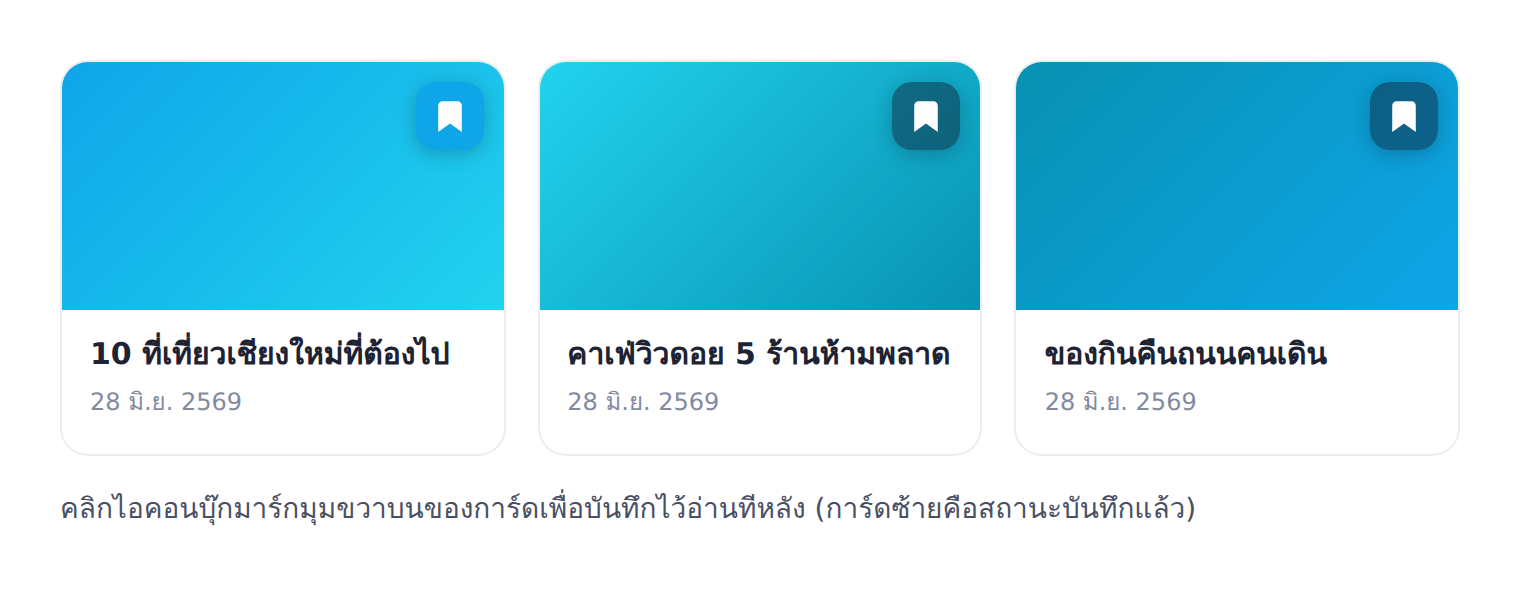
The key highlight is that readers do not need to sign up or log in, because the bookmark stores data in the reader's own browser. When they tap the save icon, that article is added to the saved list at once, with a counter showing how many are stored. Readers open the list to view and go back to read the saved articles anytime.
The bookmark button can appear in several spots for convenience, on the article cards in list pages, and within the article itself. When tapped, the icon changes state to clearly show it is saved, and tapping again removes it. All of this works reader-side with no membership system or back-end database.
How to add a bookmark in BlogKub, step by step
- Add the Bookmark block. Open the left library, category "Article & UX", and drag the "Bookmark" block in to embed the icon and save system in the theme.
- Export the XML and upload. Click Export, then take the file to blogger.com → Theme → three-dot menu → Backup/Restore → select the XML file.
- Test saving. Open the site, tap the bookmark icon on an article card or within an article, then check that the counter increases and the article appears in the saved list.
- Check persistence after refresh. Refresh the page to confirm the saved list is still there, because the data is stored in the reader's browser.
The theme's bookmark vs the browser's bookmark
Many people wonder why not let readers use the browser's existing bookmark function. The answer is about experience and context.
- Easy to tap in the content context. The theme's bookmark icon is on cards and within articles, tappable the moment they are interested, unlike the browser bookmark that requires opening a menu and can be several steps on mobile.
- Gathers the list on the site. All saved articles are collected in one list on your site, so readers come back to the site to view the list, drawing them back directly.
- Designed to fit the design. The icon and saved state blend with the theme, feeling like part of the site, not a separate browser function.
The two do not entirely replace each other, but the theme's bookmark is designed specifically to encourage coming back to read and engaging with your site.
A limitation to understand: reader-side storage
Because the bookmark is stored in the reader's browser without an account, there is a limitation worth stating clearly to set the right expectations. The saved list is tied to that browser and device, meaning if the reader switches to another device, or clears the site's data in the browser, the saved list does not carry over.
This is a worthwhile trade-off for a typical blog, because the upside is it works immediately with no complex membership system, no storing personal data, and no added privacy burden. Most readers who save an article usually come back to read it within a short time on the same device, so this limitation barely affects real use.
The bookmark, drawing readers back, and engagement
From a site-growth angle, a repeat reader is worth more than a one-time visitor, because they are familiar with the site, tend to read several articles, and may become a regular follower. A bookmark helps create a reason for readers to return, because saving is an intention to come back and keep reading.
Used with other read-on features, like related posts and an easy-on-the-eyes dark mode, the bookmark reinforces an overall experience that is impressive and inviting to return to, which is the foundation of building a stable reader base over the long term.
Examples of using bookmarks in different kinds of blog
Bookmarks help differently by kind of content. Look at some examples to see how it helps your readers.
- Recipe blogs: readers often save recipes they want to try another day, then come back when heading to the kitchen. The bookmark is like a personal recipe book on your site.
- Travel blogs: trip planners often save several articles about places, stays, and restaurants first, then come back to read them together when planning for real.
- Tutorial / how-to blogs: readers save lessons they want to follow later when they have time and the right tools, bringing them back to your site to actually do it.
- Review blogs: people deciding to buy often save several reviews to compare before deciding later.
Notice the common thread is "interested now, but will use it later", a behavior found in almost every kind of blog. So the bookmark is a feature that raises the chance readers return no matter what you write about.
Overall, a bookmark is a small investment that pays off in long-term reader retention. The more quality content your site has to save, the more valuable this feature is, because it helps turn passing readers into repeat readers.
Common problems and how to fix them
Saved articles disappear after clearing browser data
This is normal, because the data is stored in the browser. If the reader clears the site's data, the list is gone. Let readers know the bookmark is tied to that device and browser.
The bookmark icon does not show
Check that you added the bookmark block in the theme and Exported again. If you use a template without article cards, the icon may not appear in some spots.
The state does not change when tapped
It may be because the browser blocks storage in some private modes. Try testing in normal mode to confirm it works.
Best practices
- Enable the bookmark on sites with many articles, so readers have a reason to save and come back.
- Use it with related posts to encourage reading and saving several articles at once.
- Test saving and persistence after refresh on both desktop and mobile.
- Communicate to readers that the bookmark is tied to the device and browser, to set the right expectation.
Wrapping up
A bookmark is a feature that turns a passing interest into an actual return, letting readers save an article for later in one click. With BlogKub, you just add the bookmark block and Export it, and readers save and come back to read with no login, because the data is stored in their own browser. Even with the device-tied limitation, it trades for ease of use and no privacy burden, making it a good tool for drawing readers back and building a stable reader base.
Frequently asked questions (FAQ)
Does bookmark in BlogKub require login?
No login. Readers tap the bookmark icon to save an article at once, and the data is stored in the reader's own browser (localStorage), so no sign-up or account is needed.
Where are saved articles kept?
In the reader's browser on that device, with a counter and a saved list to open. So readers can come back and reopen articles they saved to keep reading, any time on the same device.
How is this different from the browser's own bookmark?
The theme's bookmark works directly on your site, easy to tap from a card or within an article, and gathers the saved list in one place on the site, unlike the browser's bookmark, which is stored separately and opened from the browser menu.
If I clear browser data, do saved articles disappear?
Yes, because the data is stored in the browser. If the reader clears the site's data or changes devices, the saved list does not carry over. This is a natural limitation of reader-side storage without an account.
Does bookmark help people return to the site?
Yes. When a reader saves an article, they intend to come back to read it, raising the chance they return to the site, increasing repeat readers and their bond with the site.