
How to add a sticky side share bar in Blogger articles
When readers like your article, what you want them to do next is share it with friends. A sticky side share bar keeps the share buttons in view throughout the reading, clickable the moment they feel like spreading the word. This article teaches you how to add one to a Blogger theme with BlogKub, with a copy link button, a choice of side, and showing only on article pages.
Quick summary: add the sticky side share bar block in BlogKub, choose the left/right side and the Facebook, X, LINE, copy link channels, then Export the XML and upload it to Blogger. The bar floats on the side, mid-screen, only on article pages, uses the clean canonical link (stripping m=1), and hides on mobile automatically so as not to cover content.
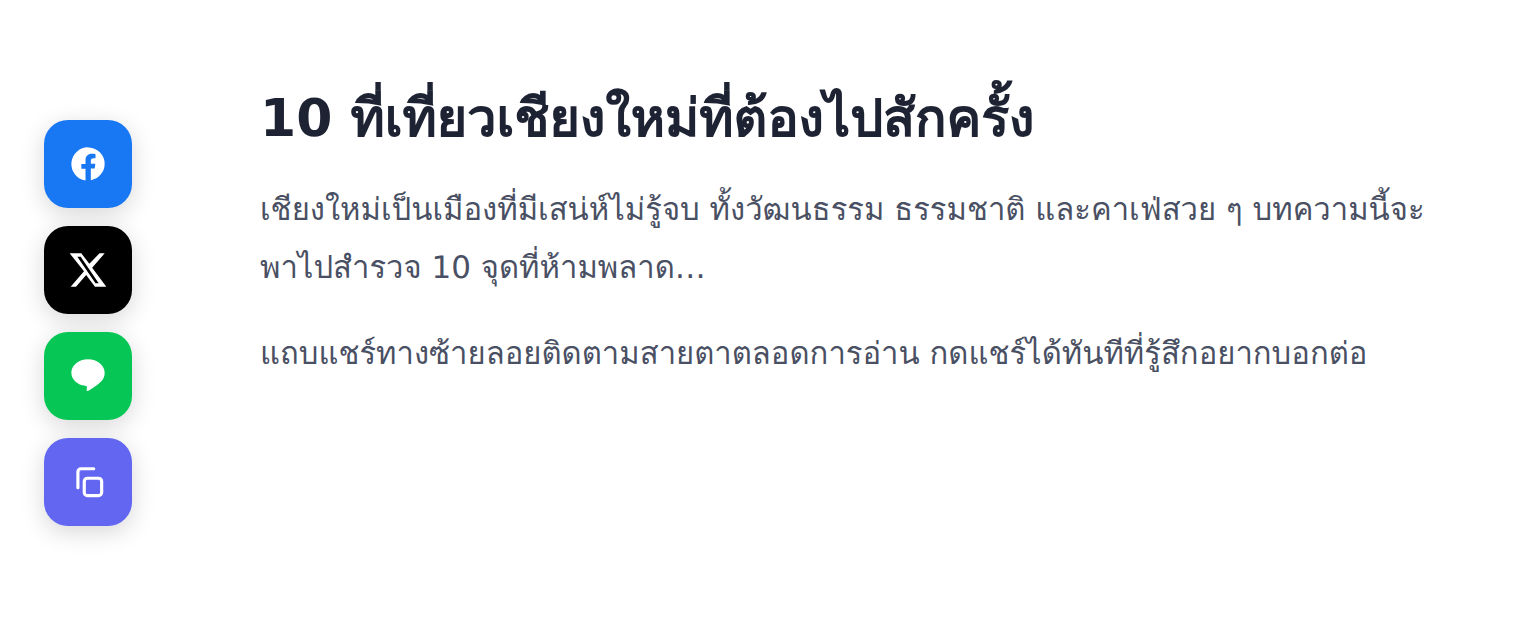
What a sticky side share bar is
A sticky side share bar is a vertical bar of social share buttons fixed mid-edge on the left or right of the screen, floating along with the reader's eye throughout scrolling. Unlike share buttons placed at the end of an article, which readers only see once they finish, the floating bar keeps the share buttons within reach at all times. Whenever a reader feels impressed, they can click share immediately without scrolling to find it.
This format is a standard on many news sites and professional blogs, because it captures the "urge to share" best. The intent to share is a fleeting moment. If the button is out of reach, the impulse fades. The floating side bar therefore helps turn a good feeling into an actual action.
Why it shows only on article pages
BlogKub's share bar is designed to show only on single post pages, not appearing on the homepage or index pages. The reason is straightforward: people share an "article", not an "index page". Showing share buttons on the homepage is useless and just clutters the eye. The system uses Blogger's condition to check that the current page is an article first, then shows the bar.
Scoping it this way is an example of context-aware design. Each element should appear where it is meaningful. When the share bar is only on pages where readers are actually consuming content, it does its job fully without becoming a distraction on other pages.
How to add the sticky side share bar in BlogKub, step by step
- Add the share bar block. Open the left block library, the "Article & UX" category, and drag the "Sticky side share bar" block into the page.
- Choose the side and share channels. Set the bar to the left or right side, and toggle the Facebook, X (Twitter), LINE, and copy link channels as you like.
- Export the XML and upload. Click Export, then take the file to blogger.com → Theme → three-dot menu → Backup/Restore → select the XML file.
- Test the sharing. Open a live article page, click each share channel and the copy link button, confirming the shared link matches the page and is a clean URL.
Which side to choose: left or right
Choosing the share bar's side depends on your layout and reader behavior. Generally, the ideas are as follows.
- Left: the classic position many news sites and blogs use, because the eye of readers of left-to-right languages usually starts on the left. It suits layouts where content is centered with free space on the left.
- Right: ideal when your layout already has a table of contents or other element on the left. Placing the share bar on the right keeps the two from colliding, and most people's mouse hand reaches right easily.
The recommendation is to see which side of the site has more free space and does not overlap other floating elements, such as a back to top button, and choose that side. Test it on a wide screen to make sure the bar does not cover content or other buttons.
The copy link button: an overlooked share channel
Many people think only of the big social buttons, but in reality, a lot of sharing happens by "copying the link and pasting it" into a private chat, a LINE group, or an app with no dedicated share button. The copy link button is therefore a powerful but often overlooked share channel. BlogKub's share bar includes it, and when clicked, it shows a brief confirmation that it was copied.
The refined part is that the copied link and the link shared to every channel are made clean. The system pulls the page's canonical link and strips the m=1 parameter that Blogger appends for the mobile version, so the link readers share out is always the main URL that matches the real page, not a version with a trailing parameter that looks ugly and may cause confusion.
The share bar on mobile: why it hides
On mobile, screen space is very limited, and a vertical floating bar on the side would cover content and take up reading space unnecessarily. BlogKub therefore hides the floating bar on small screens automatically to keep the mobile reading experience clean. This is a reader-first design decision, rather than cramming share buttons everywhere.
If you want mobile readers to be able to share too, the good solution is the inline Social Share block that places share buttons in the article content (such as at the end), which suits every screen size. Used together with the floating side bar on desktop, it covers both reader groups neatly, with each working where it fits best.
The share bar and site growth
Social sharing is one of a blog's most powerful growth channels, because it is word of mouth from person to person, which carries more credibility than ads. When readers share your article with friends, those who see it usually click out of trust, and some become new readers who share again, creating a natural growth cycle.
Although share counts are not a direct ranking factor, the increased traffic and visibility from sharing often lead to other positive signals such as mentions and backlinks from other sites. Used together with quality content and reading aids such as related articles that invite reading on, your site has a chance to grow sustainably.
Examples of use in different kinds of blogs
- News and trending blogs: timely content is often shared the moment it is read, and the floating side bar captures this well.
- How-to and tips blogs: readers often want to send good tips to a friend facing the same problem, and the share and copy link buttons make forwarding easy.
- Review blogs: people often share reviews with someone deciding to buy, and the copy link button suits sending in a private chat.
- Travel and lifestyle blogs: content with beautiful images and interesting stories tends to be shared a lot, and the floating bar lets people share at any moment.
Common problems and how to fix them
The share bar does not appear
Check that you added the share bar block and Exported again, and view it on a real "single post page", because the bar shows only on article pages, not the homepage. If viewing on mobile, the bar is hidden by design, so test on a wide screen.
The shared link has m=1 at the end
Normally the system strips this parameter. If you still see it, check that your page has a correct canonical tag, which BlogKub's theme already includes. A correct canonical helps keep the shared link clean.
The bar overlaps another floating button
If you use several floating buttons, such as a back to top button or a theme color picker, choose a side for the share bar different from those buttons so they do not overlap.
You want share buttons on mobile too
Use the inline Social Share block placed in the article alongside the floating bar, to cover mobile readers for whom the floating bar is hidden.
Best practices
- Choose the side with free space that does not overlap the table of contents or other floating buttons.
- Always enable the copy link button, because it is a share channel people really use in private chat.
- Choose only the channels your readers actually use, no need to enable every button and clutter it.
- Complement it with the inline Social Share block to serve mobile readers.
- Test that the shared link is a clean URL and opens the correct page.
Wrapping up
The sticky side share bar is a tool that precisely captures a reader's "urge to share". With BlogKub you just add the block, choose the left/right side and the Facebook, X, LINE channels plus a copy link button, and Export it to use. The bar floats on the side only on article pages, uses the clean canonical link, and hides on mobile so as not to cover content. Complemented with an inline share button for mobile, your site is ready for readers to spread the word at every moment and on every device, which is a key foundation of word-of-mouth growth.
Frequently asked questions (FAQ)
On which pages does the sticky side share bar show?
It shows only on single post pages, because that is where readers are reading content and are likely to want to share. The system uses Blogger's condition to check the page is an article before showing the bar, so it does not clutter the homepage or index pages.
Which channels can I share to?
It supports Facebook, X (Twitter), and LINE, plus a copy link button. You can toggle each channel as you like. The copy link button is very useful for sharing through chat or other channels with no dedicated button.
Does the share bar show on mobile?
The floating side bar is designed for wide screens and hides on mobile automatically so as not to cover content. If you want share buttons on mobile, we recommend using the inline Social Share block in the article alongside.
Is the shared link a correct URL?
Yes. The system pulls the page's canonical link and strips parameters like Blogger's m=1, so the shared link is a clean URL that matches the real page, not the mobile version with a trailing parameter.
Does the share bar help SEO and reach?
It helps indirectly. Social sharing increases reach and traffic, which may lead to links and popularity signals. When more people share your content, the chance of mentions and backlinks grows naturally.