How to add a Back to Top button in a Blogger theme: a step by step guide
A small floating button that carries readers back to the top in a single tap is the kind of detail that makes long articles far more comfortable to use, especially on mobile. This article shows you how to add a Back to Top button to a Blogger theme with BlogKub, one that appears as you scroll down and scrolls up smoothly, along with the UX reasoning and the settings.
Quick summary: add the Back to Top block in BlogKub (many templates already include it), choose the bottom-right or bottom-left corner, then Export the XML and upload it to Blogger. You get a floating button that appears when you scroll down and scrolls smoothly back to the top when clicked. It uses a tiny script, does not affect speed, and makes long articles more comfortable to use, especially on mobile.
What a Back to Top button is, and why it matters
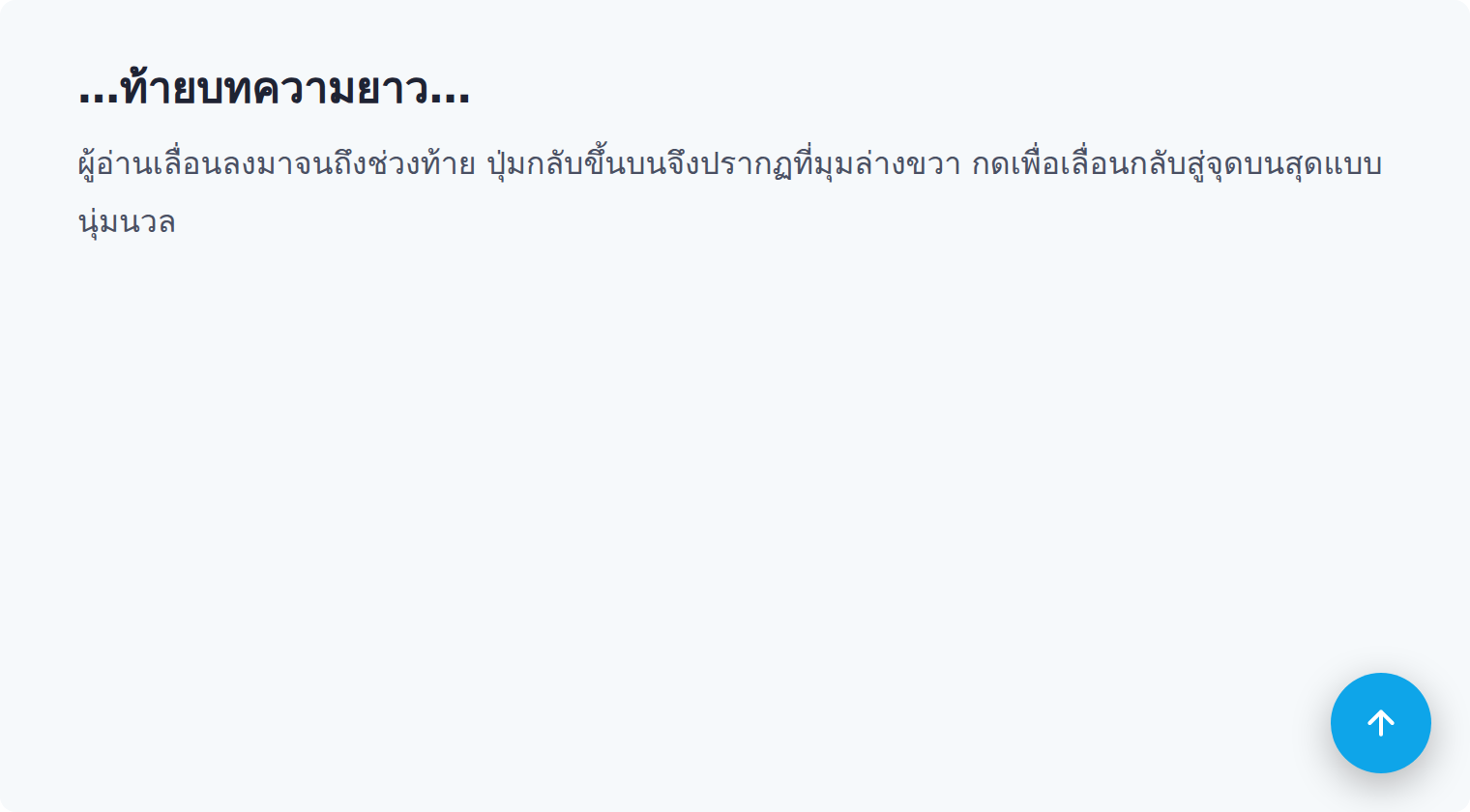
A Back to Top button is a floating button, usually in the lower corner of the screen, that returns the reader to the very top of the page the moment they click it. The button stays hidden while the reader is near the top, and appears once they have scrolled down a fair amount, so it does not get in the way when it is not yet needed.
Its value is clearest with long articles. When a reader has scrolled all the way to the end and wants to get back to the table of contents, the menu, or a heading up top, scrolling back by hand a little at a time is tedious and tiring, especially on mobile where a long article stretches far down the screen. The Back to Top button solves this by offering a shortcut back to the start in a single tap.
The small details that separate a good button from an ordinary one
A Back to Top button may look like a basic feature, but the details of doing it well matter a great deal to how it feels. BlogKub pays attention to these three points.
1. Appears only when needed
The button does not show while you are at the top of the page, because there is no reason to go up when you are already up there. It appears with a soft transition once the reader has scrolled down a certain distance, so the button never distracts the eye unnecessarily.
2. Scrolls up smoothly
When clicked, the page scrolls back to the top with a smooth scroll rather than jumping instantly. This kind of motion helps the reader sense the direction and avoid confusion about what just happened, unlike an instant snap that costs them their sense of position.
3. Choose a side so it does not clash with other buttons
Because a site may have several floating buttons, such as a dark mode toggle, the Back to Top button can be set to the right or left side, preventing an overlap that leads to mis-taps.
How to add the Back to Top button in BlogKub, step by step
- Add the Back to Top block. Many templates already include it. If yours does not, open the left library, the "Article & UX" category, and drag the "Back to Top" block in.
- Choose the button position. Click the block to set the button to the bottom-right or bottom-left corner, picking the side that does not overlap other floating buttons on the site.
- Export the XML and upload. Click Export, then take the file to blogger.com → Theme → three-dot menu → Backup/Restore → select the XML file.
- Test the scrolling. Open a long article, scroll down to see the button appear, then click it to confirm the page scrolls back to the top smoothly.
The Back to Top button alongside other reading features
The Back to Top button pairs perfectly with other reading aids. Used together with a table of contents at the start of the article, readers can click Back to Top to return to the table of contents and jump quickly to another section. Used together with a reading progress bar, readers get both a position indicator and a shortcut back to the start, making navigation in a long article complete.
The one caution is that if you enable several floating buttons at once, such as Back to Top, a dark mode toggle, and a share bar, you should position them so they do not overlap, choosing left and right sides appropriately, so each button is easy to tap and not confusing.
Back to Top vs other ways to navigate back up
Besides the Back to Top button, there are other ways to help readers return to the top. Understanding the pros and cons of each helps you choose what fits your site.
- Sticky header: the menu stays fixed at the top at all times, so the menu is always reachable, but it takes up screen space, especially on mobile, and it does not actually take you back to the very "top" of the article.
- Table of contents at the start of the article: it helps jump to a heading, but the reader has to scroll back up to find the table of contents first, which loops back to the original problem.
- Back to Top button: takes no space when unused (it stays hidden), appears when needed, and returns you to the top in a single tap, making it the most balanced choice for long articles.
The best approach is often to use them together, for example a sticky header for the main menu plus a Back to Top button for a quick return to the start of the article. The two complement each other without overlapping.
The Back to Top button on the modern web
If you look at leading article sites, you will see the Back to Top button has become a standard element of long-form pages. The reason is not just following a trend, but that reading habits on the web have changed. People read on mobile more, and articles have grown longer to answer questions thoroughly and stay search-friendly. As articles get longer, the need for a shortcut back to the top only rises.
Small details like this are what separate a site that "cares about readers" from one that merely has content. Because BlogKub builds a carefully made Back to Top button into the theme, your Blogger blog looks and works on the same level as a professional site, without you having to write any script yourself.
The Back to Top button, SEO, and user experience
The Back to Top button is not a direct ranking factor, but it helps indirectly through a better user experience. When readers can navigate a long article comfortably, they are more likely to keep exploring the content, open the table of contents, or go back to reread a section of interest, instead of leaving because they feel stuck at the bottom of an endless page. Those behaviors reflect user satisfaction, which is a positive signal.
Importantly, BlogKub builds this button with a small script that loads no external files and does not affect site speed, so you gain the UX benefit without trading away your Core Web Vitals scores, the same philosophy as the theme's other features.
Another angle not to overlook is how readers feel. A button that appears smoothly and carries them back up fluidly creates a small good impression that accumulates into an image of a site that is polished and attentive to detail, something readers remember and that makes the site feel more trustworthy without their realizing it.
Common problems and how to fix them
The button does not appear
It may be because the page content is too short to scroll, so the button does not show. Try testing on an article that is long enough, or check that you added the Back to Top block to the theme.
The button overlaps another floating button
If the Back to Top button overlaps the dark mode toggle or the share bar, move the button to the other side in the block settings.
It snaps up instantly instead of scrolling smoothly
Normally BlogKub's button scrolls smoothly. If it snaps instantly, it may be because a browser or system setting has motion turned off (reduced motion), which is the correct behavior for accessibility.
All of this reflects the idea that a good feature does not have to be flashy or complex, it just has to be in the right place at the right time. The Back to Top button is a clear example of a quiet feature that works when the reader needs it and steps out of the way when they do not, which is the heart of design that truly cares about users.
Best practices
- Enable the Back to Top button on sites with long articles, where it is most useful, especially for mobile readers.
- Choose a side that does not overlap other floating buttons such as the dark mode toggle, to avoid mis-taps.
- Use it together with a table of contents and a reading progress bar for complete navigation in long articles.
- Test on a real phone, since that is the device where this button is used most.
Wrapping up
The Back to Top button is a small detail that genuinely raises the comfort of reading long articles, especially on mobile where scrolling back by hand is tiring. With BlogKub you simply add the Back to Top block, choose the position you like, and Export it to use. You get a button that appears when needed, scrolls up smoothly, stays light on speed, and paired with a table of contents and a reading progress bar, your long articles become easy to navigate and comfortable to use at a professional level.
Frequently asked questions (FAQ)
Is the Back to Top button always visible?
No, it is not always shown. The button stays hidden while the reader is at the top of the page, and gradually appears once they scroll down a fair amount, so it does not clutter the screen when it is not needed.
When I click the button, does it jump or scroll up smoothly?
It scrolls up smoothly (smooth scroll) rather than jumping instantly, so the reader senses the direction of movement and it feels fluid and natural.
Can I choose the button position?
Yes. You can set the floating button to sit in the bottom-right or bottom-left corner in the block settings, so it does not overlap other floating buttons such as the dark mode toggle.
Does the Back to Top button slow the site down?
No, it does not slow things down. The button uses a small script that watches the scroll position and scrolls up when clicked. It loads no external files and does not affect Core Web Vitals.
Is a Back to Top button necessary on mobile?
It is very useful on mobile, because long articles run far down a narrow screen, so scrolling back to the top by hand is tiring. This button lets readers return to the top in a single tap.