How to build a Post List (horizontal list) in Blogger
Sometimes large cards waste too much space. When you want to show several posts compactly, a Post List is the answer. It shows posts as horizontal rows with a small image and a title. This article teaches you how to set it up in a Blogger theme with BlogKub, one that pulls from the feed automatically, letting you set the count and toggle the image.
Quick summary: the Post List block in BlogKub shows posts as a horizontal list with a small image and a title, pulled from the feed automatically. You can set the section heading, post count, and toggle the image. It suits narrow spaces or when you want to show many posts vertically and compactly. It is responsive, then you Export it to use.
What a Post List is, and how it differs from a Post Grid
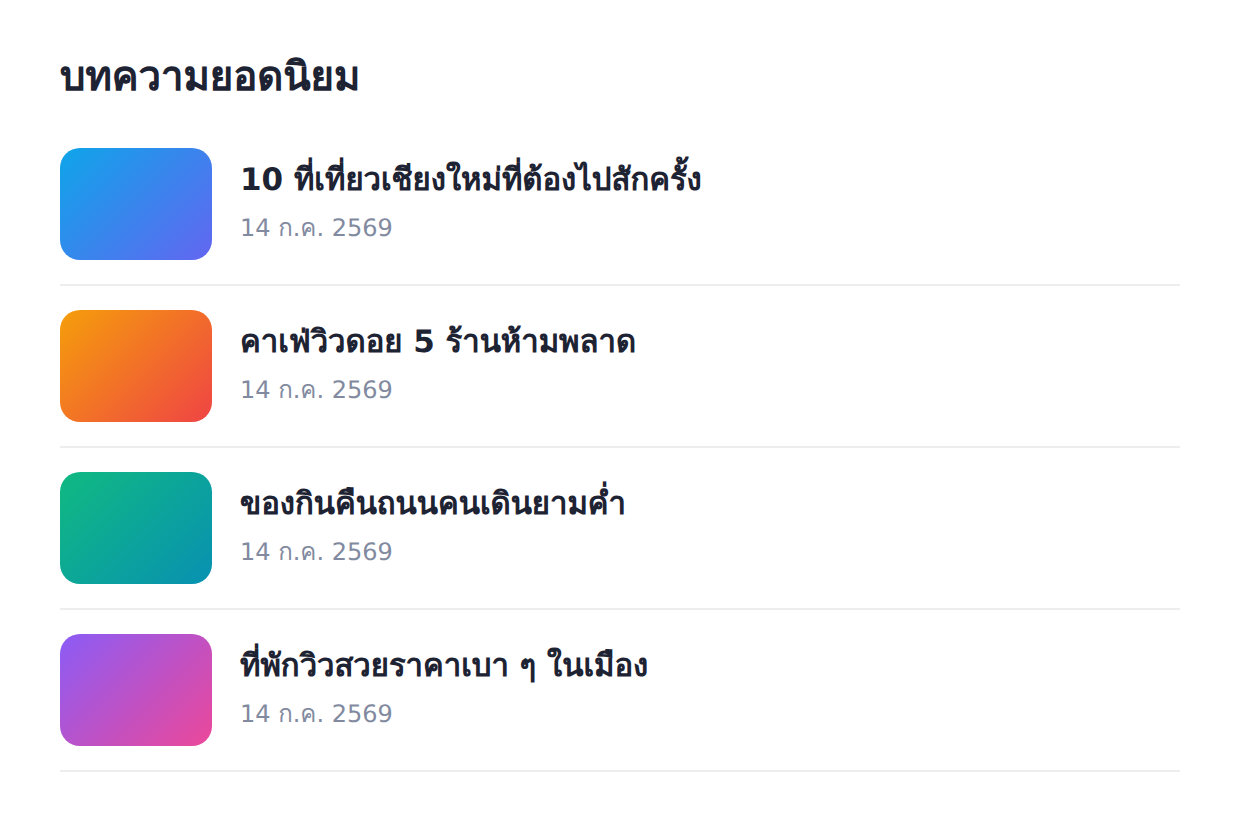
A Post List shows posts as rows stacked vertically, each row with a small image and a title laid out horizontally. Unlike a Post Grid that shows cards in a grid emphasizing large images, a list uses vertical space compactly, so it can show many posts in a limited space while readers can still scan titles quickly.
This difference makes the two suit different situations. A Post Grid suits the main post section on the homepage that emphasizes image beauty, while a Post List suits narrow spaces like a sidebar, or a section where you want to show many posts without taking much space, such as a popular or latest posts list. Choosing the right one for the context helps the page have rhythm and use space efficiently.
Pulls from the feed automatically like the other sections
Like the Post Grid and the latest posts section, the Post List pulls data directly from the Blogger feed. The system takes each post's title, image, and date to display as list rows. The result is that the list updates itself every time you publish a new post, with no need to add or edit anything yourself.
Working with the feed is the same principle throughout BlogKub, which makes the various post sections take care of themselves. So you can be sure the Post List always shows the latest content while you focus on writing. The consistency of this approach also makes the features easy to understand and use, because they work alike.
How to set up the Post List step by step
- Add or select the Post List block. Select the "Post List" block in the template, or drag it into the position you want, such as a sidebar or a supporting section.
- Set the heading and count. Enter a section heading (such as "Popular posts") and choose the number of posts to show in the list.
- Toggle the image. Choose whether to show a small image in front of each item. Turning off the image makes the list compact and title-focused.
- Export the XML and check the result. Click Export, upload it to Blogger, then check the list displays correctly and is easy to read on both desktop and mobile.
Turn the image on or off: choose by space and goal
The image toggle is a decision that affects the list's look and compactness. When the image is on, each item has a small image in front of the title, helping draw the eye and provide illustration, ideal when you have enough space and want the list to be interesting. When the image is off, the list is just titles and dates, very compact, showing many posts in little space, ideal for a narrow sidebar or a long list.
The choice depends on the goal. If you want readers to scan many titles quickly, turning off the image lets them see more posts on one screen. But if you want to attract with images, turning it on is more interesting. Try both in the spot where you will place the list, and choose the one that best fits your space and readers.
The Post List in the site's navigation system
A Post List often serves as a supporting section that aids content discovery. Placed in a sidebar to show popular or latest posts, it helps a reader who is reading one article see other posts and click to read on. This increases the chance for readers to explore the site more, which lengthens their time on the site.
Used together with a sidebar that places the list beside the content, and other read-on elements such as related articles, the Post List is another layer of the system that always gives readers a reading option. Designing every point of the site to offer other posts is a key strategy for retaining readers and increasing the number of posts read.
The Post List and designing the page's rhythm
A good web page has a varied "rhythm" of presentation, not large cards stacked down the whole page. Mixing post display formats keeps the page from being dull and uses space appropriately. For example, use a large-card post grid for the latest posts you want to emphasize, then use a compact post list for a "Popular posts" or "Read more" section that does not need much space.
Alternating between large cards and compact lists creates visual variety that makes the page look designed, not just repeated content placement. The Post List is therefore a tool that lets you control the rhythm and information density in each section of the page, making the page both beautiful and space-efficient.
The Post List on mobile
A Post List has a special advantage on mobile, because the horizontal format with a small image on one side and a title on the other fits a narrow screen well. Unlike large cards that take a lot of height and require much scrolling, a row-based list lets mobile readers see several posts with few scrolls, which suits mobile scanning behavior where readers often scroll fast.
Since most readers come from mobile, having a compact post list in some parts of the page improves the mobile experience. The system already adjusts the display to suit small screens, so you can be sure the list reads easily on every device. Choosing to use a list in suitable spots is therefore a design that considers mobile readers from the start.
Common problems and how to fix them
The Post List does not show
Check that the blog has published posts, because the list pulls from the feed, and check that you added/selected the block and Exported again.
The image in the list does not appear
The list uses the post cover image. If a post has no image, its row has no image. Add a cover image to every post, or turn off the image for consistency.
The list is too long
Reduce the number of posts shown to fit the space, especially in a sidebar that should not be so long it pushes other content down.
You want large-image cards instead
If you want to emphasize images and large cards, use a Post Grid instead, which is designed specifically for a card display.
Examples of using the Post List in different kinds of blogs
- News/update blogs: a compact list of headlines in a sidebar, letting readers scan several latest news items quickly, ideal for content people want to update on fast.
- Knowledge/how-to blogs: a "Popular posts" or "Read on" list at the end of an article or in a sidebar, recommending more content without taking much space.
- Review blogs: a row list of other reviews in the same category, letting comparing readers see several options in one space.
- Content-heavy sites: an image-off list to show many titles compactly, ideal for an article index or a topic roundup page.
The common thread in every case is that a Post List helps show "many posts in little space", which complements the main post section and helps readers discover more content without making the page too long.
Best practices
- Use a Post List in narrow spaces or when you want to show many posts compactly.
- Turn the image on when you have space and want to attract, off when you want compactness.
- Set the number of posts to fit the space, not so long it pushes other content down.
- Add a cover image and a clear title to every post so the list looks good.
- Use it alongside a Post Grid and a sidebar for a complete content display system.
Wrapping up
A Post List is a compact way to show posts, suited to narrow spaces and showing many posts vertically. With BlogKub you can set up the Post List easily with no coding. The system pulls posts from the feed automatically and shows them as list rows with a small image and a title. You can set the section heading, post count, and toggle the image by space and goal, and it is responsive. When you use it in the right context, such as placing it in a sidebar to show popular posts, the Post List helps readers discover and read more posts, which supports your site's navigation and reader retention.
Frequently asked questions (FAQ)
How is a Post List different from a Post Grid?
A Post List shows posts as horizontal rows with a small image and a title, using compact vertical space, while a Post Grid shows cards in a grid emphasizing large images. A list suits narrow spaces or when you want to show many posts vertically.
Where does the Post List pull its data from?
It pulls from your own Blogger post feed, taking the title, image, and date to display, so it updates automatically each time you publish a new post, with no need to add anything yourself.
Can I turn off the image in the list?
Yes. You can toggle the small image in front of each item. Turning off the image makes the list compact and title-focused, ideal when you want to show many posts in a limited space.
Where is a Post List good for?
It suits a sidebar, a narrow space, or a section where you want to show many posts vertically, such as a popular or latest posts list, letting readers scan titles quickly.
Is the Post List responsive?
Yes, it is responsive. The list adjusts its display to suit small screens automatically, arranging the title and image for easy reading, so it works well on both desktop and mobile.