How to build recent and random posts (Recent & Random Posts) in Blogger
When a reader finishes an article, the question is "what should I read next?" If you do not suggest one, they usually close the page. A recent or random posts section answers that question by offering another article to read on. This article teaches you how to add it to a Blogger theme with BlogKub, pulled from the feed automatically and filterable by label, plus settings and fixes.
Quick summary: add the Random/Latest by label block in BlogKub, choose recent or random mode, set the heading, count, columns, and label, then Export the XML and upload it to Blogger. The system pulls posts from the feed automatically, shows them as cards with an image, title, and date, filters out the current page, and updates itself every time you publish a new post.
What the recent/random section is, and what it helps
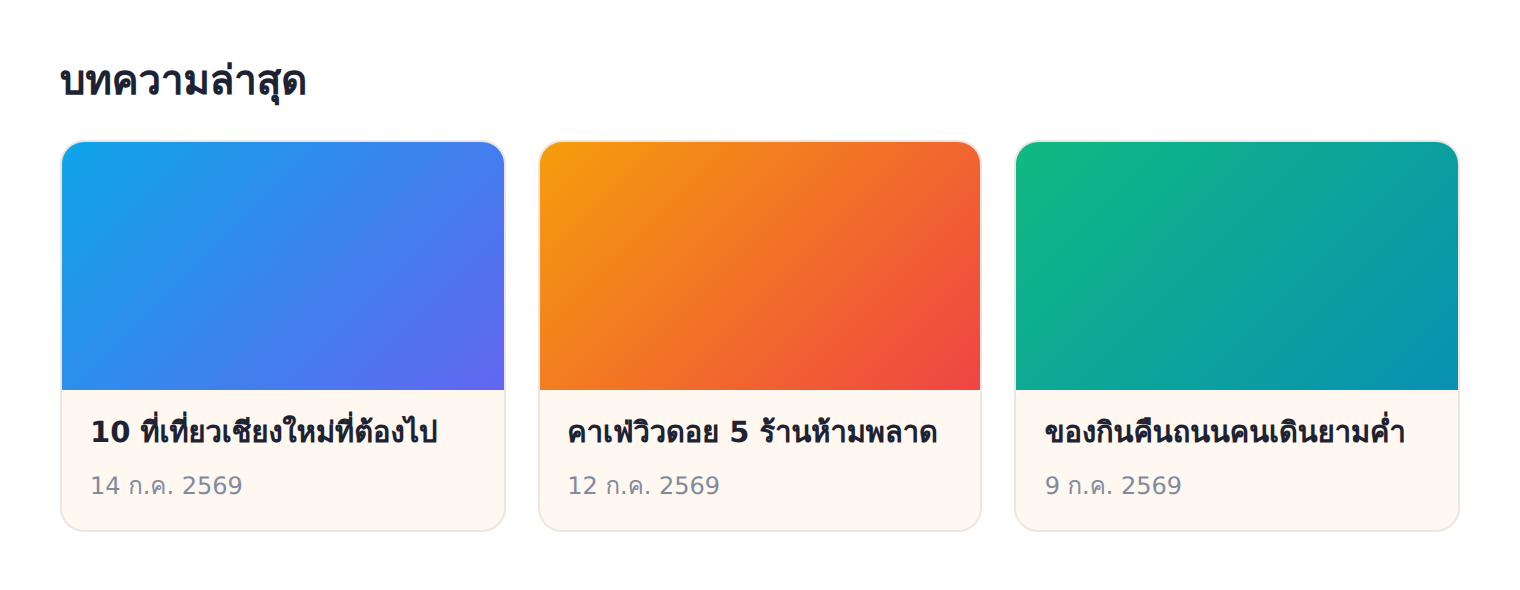
This section is a grid of post cards that pulls posts from your blog to display, letting you choose to show "recent posts" in chronological order or "random posts" shuffled. Place it wherever you want to prompt readers to read on, such as at the end of an article, the homepage, or before the footer.
The main value is extending the time readers spend on the site and raising the number of pages they read per visit. When readers finish and see an interesting card for another article, the chance they click to read on is much higher than closing the page. This is the same principle big content platforms use: "never leave a dead end, always offer the next thing".
Pulled from the Blogger feed: updates itself automatically
The strength of this feature is that it pulls data straight from your Blogger post feed. When the page loads, the system calls the feed to take posts' cover images, titles, and dates and build them into cards. The result is that this section updates itself every time you publish a new post, with no going back to edit the theme or add links yourself.
This is an advantage over a fixed post list that needs manual updates every time. The automatic system means your site looks alive and current always, with new posts appearing here immediately, while random mode also revives older posts that still have value so they get read again, making use of the content archive you have built.
How to add the recent/random section, step by step
- Add the recent/random block. Open the left block library and drag the "Random/Latest by label" block into the spot you want, such as at the end of an article or on the homepage.
- Choose the mode and settings. Choose "recent" or "random" mode, set the heading (such as "Latest posts"), the post count, the number of columns, and a label if you want to filter to a specific category.
- Export the XML and upload. Click Export, then take the file to blogger.com → Theme → three-dot menu → Backup/Restore → select the XML file.
- Check the post display. Open the live site to confirm the cards show the image, title, and date completely, lay out in columns correctly, and do not repeat the current article in the list.
Recent mode vs random mode: how to choose
The two modes have different strengths and suit different positions.
- Recent mode: shows the newest posts by time, good for the homepage or a spot where you want readers to see the blog's latest activity, like "what's new", signaling your site is still active.
- Random mode: shuffles posts on every load, good for the end of an article or a spot where you want to prompt discovery, helping good older posts get read and not be forgotten because they scrolled far away.
The tip is you can use both in different positions, such as recent mode on the homepage to show freshness and random mode at the end of an article to invite exploring the archive. This mix presents both new and old content in balance.
Filter by label: recommend to the right group
Setting a label makes this section pull only posts in the category you specify. The clearest benefit is recommending posts in the "same category" the reader is interested in. For example, if they are reading a travel article, showing other travel articles is more on-target than a random draw from every category.
On-target recommendations significantly raise the chance of clicking to read on, because they fit the interest the reader already showed through the article they chose to read. This idea is similar to related posts but more flexible in the choice of mode and label, so you can design content navigation to suit each position on the site.
Not repeating the current article: an important detail
A small detail that makes this feature genuinely usable is that the system filters out the current page automatically. Imagine a reader reading article A and the "latest posts" section at the bottom showing article A again. That would look unprofessional and useless. So the system checks the current page URL and removes it from the list, keeping every card another article the reader has not read on this page.
This kind of detail is what separates a "well thought-out" feature from one done casually. Caring about these edge cases makes the reader experience smooth without them even noticing, which is the goal of good design.
Examples of use in different kinds of blog
- News/update blogs: recent mode on the homepage to show new stories, letting readers see the latest activity at once.
- How-to/knowledge blogs: random mode filtered by label at the end of an article, to invite reading same-category articles still useful even if old.
- Travel/lifestyle blogs: show same-category posts with beautiful images, drawing readers on with visuals.
- Review blogs: recommend other reviews in the same category to readers comparing options.
A note on speed
Because this section pulls data from the feed on page load, set the post count sensibly, not more than necessary. Showing around 6 cards is usually just right. The images used are small thumbnails so they load fast, and the system uses lazy loading for card images, helping keep the impact on the first page load low.
As with other feed-pulling features, choosing appropriately sized cover images helps both this section and the overall page load faster. Good image management is therefore the key to a feature that is beautiful and not sluggish.
Common problems and how to fix them
The post section does not show
The system hides this section if it cannot pull posts. Check that the blog has published posts, and if you set a label, make sure there are actually posts in that category. A label with no posts has nothing to show.
Cards have no image
Cards use the post cover image. If a post has no cover image, that card may have no image. Add a cover image to every post so the cards look complete.
Posts shown do not match the category
Check that the label is set to match the actual label name used in the posts. It must be spelled the same to filter to the right category.
Random mode repeats the same posts often
Random mode shuffles from the set of posts pulled. If the blog has few posts, the variety is naturally limited. As you write more posts, the variety of the shuffle increases.
Best practices
- Use recent mode on the homepage to show freshness, and random mode at the end of an article to invite exploring the archive.
- Set a label to recommend same-category posts, raising relevance and clicks.
- Add a cover image to every post so cards look complete and attractive.
- Set a sensible post count to keep the page fast.
- Use it with related posts and bookmarks to raise the chance readers keep reading and return.
Wrapping up
The recent/random posts section is a key tool for extending the time readers spend on the site and raising the number of articles they read per visit. With BlogKub, you just add the block, choose recent or random mode, set the heading, count, columns, and label, and Export it. The system pulls posts from the feed automatically, shows them as cards with an image, title, and date, filters out the current page, and updates itself every time you publish a new post. Placed in the right spot and filtered to the right group, this section helps both new and old content get read, and turns readers about to close the page into ones who stay and explore your site more.
Frequently asked questions (FAQ)
Where do recent/random posts get their data?
From your own Blogger post feed (feeds/posts/default), taking the cover image, title, and date to show as cards, so it updates automatically every time you publish a new post, with no manual editing.
How is recent mode different from random mode?
Recent mode shows the newest posts in chronological order, good for readers to see the latest activity, while random mode shuffles posts randomly, good for prompting the discovery of older posts that still have value, so old content keeps getting read.
Can I filter to specific categories?
Yes. Set a label to pull only posts in that category, such as showing posts in the same category the reader is reading, to recommend related content more precisely.
Will the current article show up again?
No. The system filters out the current page automatically, so it does not show the article the reader is reading again, keeping the list to other articles the reader has not seen.
How is this different from related posts?
Recent/random emphasizes showing posts by time or at random (optionally filtered by label), while related posts emphasizes the content relationship to the current article. The two can be used together to raise the chance readers keep reading.