How to build a copy code button in Blogger code blocks
For blogs with code samples, letting readers copy the whole block in one click is a small detail that makes a huge difference. This article teaches you how to add a copy code button to a Blogger theme with BlogKub that works automatically on every code block, along with the reasoning, settings, and common fixes.
Quick summary: add the copy code button block in BlogKub, then Export the XML and upload it to Blogger. The system adds a "Copy" button in the top-right of every <pre> code block in your articles automatically. Readers copy the full code in one click, with a "Copied" state, and there is a fallback for older browsers.
What a copy code button is, and why tech blogs cannot do without it
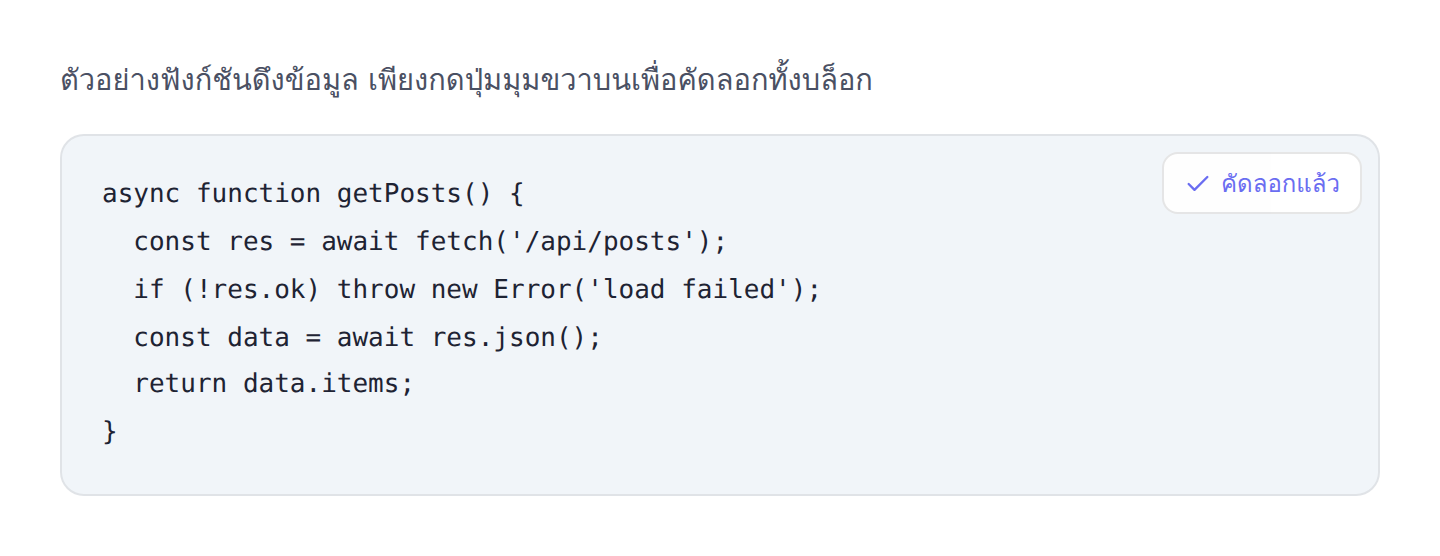
A copy code button is a small button on the corner of a code block that, when a reader clicks it, copies all the code in that block to the clipboard at once, without dragging the mouse to select line by line, without fear of missing lines or accidentally selecting line numbers. Just click once and paste in your own program.
For blogs that teach coding, share scripts, or write tech how-tos, this button is something readers expect to be there, because leading documentation sites and developer communities all have a copy button on every code block. When your blog has it, readers immediately feel the site looks professional and cares about their experience. Conversely, if they have to drag-select themselves on mobile, which is very hard, plenty of readers will give up and leave the page.
Behaviorally, copying code is one of the most frequent actions a tech reader takes. Every time they fight with drag-selecting is friction that erodes their good feeling toward the site. A copy button is therefore a small investment with a high return in satisfaction and repeat reading.
How BlogKub's copy code button works
The highlight is that it works automatically on every code block without you touching the theme's code at all. When you add this block, the system embeds a tiny script that scans every <pre> tag in the article content and adds a "Copy" button with an icon in the top-right of each block. So you write articles and place code as usual, without adding a button per block.
When a reader clicks the button, the system takes the text in the block (from the inner <code>, or the whole block if none) and writes it to the clipboard via the modern Clipboard API. The button then changes its text to "Copied" and changes color briefly to confirm success, before returning to normal on its own, giving clear feedback without disrupting the eye.
Importantly, the system has a fallback. If the reader's browser does not support the modern Clipboard API, it switches to the older copy technique automatically, so most readers can copy even on older browsers or restricted environments.
How to add the copy code button in BlogKub, step by step
- Add the copy code button block. Open the left block library, category "Article & UX", and drag the "Copy code button" block in to enable the automatic button system across the theme.
- Export the XML and upload. Click Export, then take the file to blogger.com → Theme → three-dot menu → Backup/Restore → select the XML file to upload the new theme.
- Put code in the post with a pre block. When writing an article, put your code in a
<pre><code>...</code></pre>tag, and the system recognizes it as a code block and adds the copy button itself. - Test copying. Open the live article, click the copy button in the top-right of the code block, then paste it into a text editor to confirm you got every line with no odd characters.
<pre> tag, because the system reads the real text in the block, not the colors or formatting.Why code blocks must use the <pre> tag
The <pre> (preformatted text) tag is the web standard for showing text that must keep its spacing and line breaks as in the source, which is essential for code where indentation has meaning. The copy button system relies on this tag as the signal that "this is a code block", so it does not add a button in the wrong place on a normal paragraph.
The benefit of using <pre> with <code> also includes semantic meaning, letting search engines and screen readers understand that this section is code, helping your content be friendly to both SEO and accessibility. When you set the structure correctly, the copy button works precisely and automatically.
If you paste code into Blogger and it becomes one long line, check that the editor is in "HTML view" and the code is genuinely wrapped in <pre>, because the "compose" mode sometimes strips line breaks, distorting both the display and the copy.
Details that make the copy button look good and easy to use
A good button is not just "click and it copies", it must communicate its state so readers are confident. BlogKub's copy button has these small details designed in.
- Fixed top-right position. Placed where readers expect by tech-web convention, recognizable at a glance as a copy button.
- A document-pair icon. Uses the two-overlapping-sheets icon that is the universal symbol for copying, conveying meaning even without reading text.
- "Copied" feedback. On success, the button changes text and color briefly, then returns to normal on its own, giving confidence with no disruptive popup.
- Blends with the theme. The button uses your theme's colors and rounded corners, in both light and dark mode, so it looks like part of the site, not a foreign element.
These details may seem small, but together they make readers feel your site is refined and credible, a feeling that carries over to the credibility of the content too.
The copy code button and the mobile experience
On mobile, drag-selecting text in a horizontally scrolling code block is extremely frustrating. Readers often fail to select all of it, or accidentally scroll the screen instead. The copy button is therefore even more valuable on mobile than desktop, because it turns a near-impossible task into a single tap.
Considering that most blog readers today come from mobile, having a copy button is not a gimmick but a fix for a real usability problem affecting many readers, reducing the mid-page exit rate of those who came to use the code.
The copy code button, SEO, and time on page
Even though the copy button is not a direct ranking factor, it has a valuable indirect effect on SEO through user-experience signals. When readers copy code conveniently, they tend to stay on the page longer, read to the end, and come back when they need the code again. These behaviors are quality signals search engines value.
Beyond that, blogs with genuinely usable, easy-to-copy code samples tend to get shared and cited more, leading to more links and traffic naturally. Used with good content structure, such as a table of contents that helps readers jump to the code section they want, and an AEO summary box that answers concisely, your site becomes friendly to both readers and search engines at once.
Examples of use in different kinds of blog
The copy code button is more broadly useful than you might think, not limited to coding blogs.
- Coding tutorial blogs: readers copy sample scripts to run or adapt at once, cutting steps and typing errors.
- Template and snippet blogs: sites giving away CSS, HTML, or various recipes, where the copy button makes them easy to use and raises the chance readers come back for code.
- Blogger/web technique blogs: articles recommending decoration or theme-fix code, where readers copy and paste precisely, reducing broken code from missing pieces.
- Command and config blogs: sites sharing command-line commands or config files, where copying it all correctly matters greatly, because one wrong character fails to run.
The common thread is that readers want to "use the code", and the copy button helps them succeed smoothly, which adds value to your content in readers' eyes.
Common problems and how to fix them
Clicking copy gives incomplete code or odd characters
This usually happens because the code is not correctly in a <pre> tag, or there is nested formatting inserting special characters. Check in HTML view that the code is wrapped in <pre><code> with no odd formatting tags in between.
The copy button does not appear
Check that you added the copy code button block in the theme and re-exported, then confirm the code block genuinely uses a <pre> tag, because the system only adds a button to <pre> blocks.
Clicking does not copy on some browsers
Normally the system switches to the fallback itself, but some restricted environments (such as a non-HTTPS page) may block clipboard access. Make sure your site is served over HTTPS, which Blogger already supports.
The button overlaps the first line of code
The button floats in the top-right of the block. If the first line is long enough to hit the button, readers can still scroll to read normally, but if you want, add a blank line at the top of the code for tidiness.
Best practices
- Always wrap code in
<pre><code>in HTML view, so the copy button and display are correct. - Test copying on both desktop and mobile, especially articles with multiple code blocks.
- Place code that is genuinely usable once copied, with no special characters from web formatting mixed in.
- Use it with anchor links so readers can share a link straight to the section with the code they want.
- For long articles with many code sections, add a table of contents to help readers jump to the relevant code block faster.
Wrapping up
The copy code button is a small detail that instantly raises a tech blog's professionalism and usability. With BlogKub, you just add the copy code button block once and Export it, and the system adds a button to every <pre> code block in every article automatically. Readers copy in one click with a confirmation state, and there is a fallback for older browsers, reducing friction, raising satisfaction, and giving readers a reason to come back for code from your site, without you writing any theme code yourself.
Frequently asked questions (FAQ)
What code blocks does the copy button work with?
It works with code blocks written using the <pre> tag in the article content. The system scans every <pre> in the content and adds a copy button in the top-right automatically, and clicking it copies all the text in that block.
Do I have to add a copy button to each block?
No. Add the copy code button block once, and the system adds a button to every code block in every article automatically. You just write code in <pre> tags as usual.
What if a reader uses an old browser without the Clipboard API?
The system has a fallback. If the browser does not support the modern Clipboard API, it switches to the older copy method automatically, so most readers can copy even on older browsers.
Does the copy button slow the site down?
Almost no effect, because it is a tiny reader-side script with no external file or heavy library, so it does not significantly affect speed or Core Web Vitals.
How does the copy code button help SEO?
Indirectly through user experience. When readers copy code conveniently, they tend to stay on the page longer and come back to read again, a good quality signal for tech blogs with many code samples.