How to build anchor links (copy a link to a heading) in Blogger
In a long article, sending the whole-page link and making the other person scroll to find a heading is annoying. Anchor links solve this by letting readers copy a link that points straight to the heading they want. This article teaches you how to add it to a Blogger theme with BlogKub, which generates ids automatically and supports Thai.
Quick summary: add the Anchor Link block in BlogKub, then Export the XML and upload it to Blogger. The system adds a link icon to every H2/H3/H4 heading, generates an id automatically from the text (Thai supported, no clashes), and when a reader clicks it copies a link straight to that heading to share a precise spot in a long article at once.
What an anchor link is, and what problem it solves
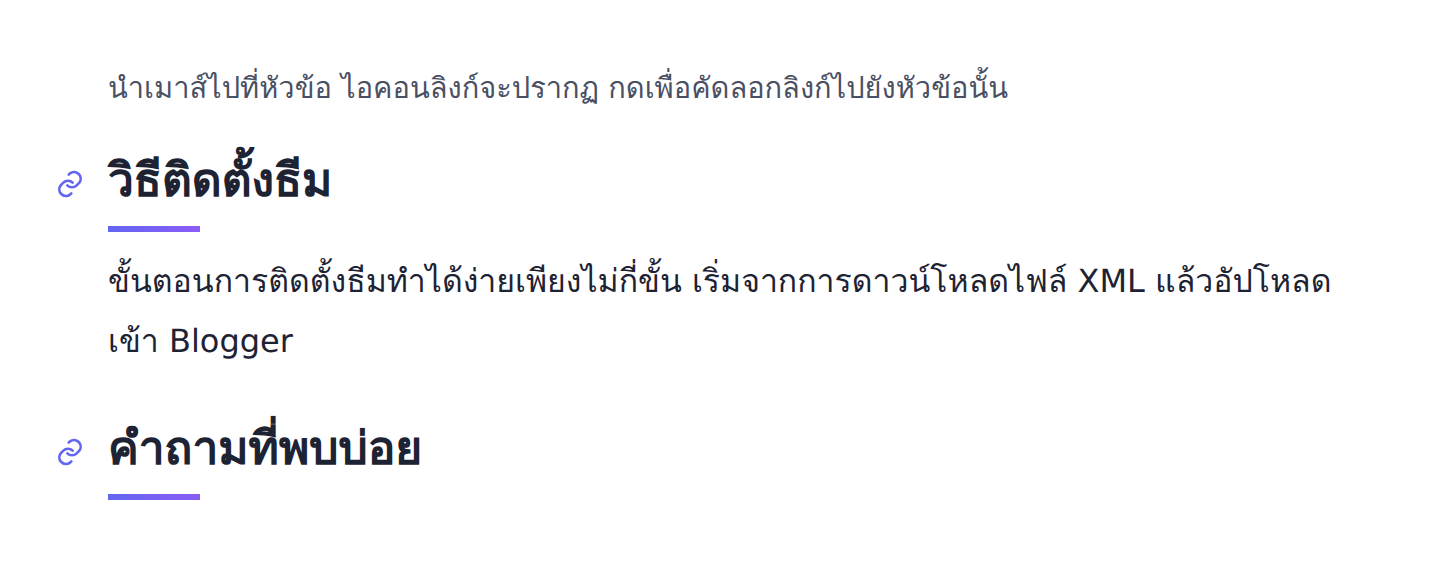
An anchor link (heading link) is a link that points straight to a specific heading on the page. When you open that link, the browser scrolls to the specified heading immediately, instead of opening at the top of the page and leaving the reader to scroll and find it. The technique relies on an id attached to the heading and a # in the link to say where to jump.
The clearest problem anchor links solve is sharing content in a long article. Imagine a 3,000-word guide with 15 headings. When a friend asks a question you already answered in heading 9, you want to send a link that takes them straight there, not a bare page link with "scroll down to the section on...". Anchor links make sharing precise and professional.
How BlogKub's anchor links work
When you add this block, the system embeds a script that scans every H2, H3, and H4 heading in the article content and does two things automatically. First, it generates an id for the heading if it does not have one, and second, it adds a small link icon beside the heading. When the reader hovers over the heading, the icon appears faintly, and clicking it copies the heading's full link to the clipboard, while updating the URL in the address bar to match.
The refined part is generating ids without clashes. The system converts the heading text into a usable id string (keeping Thai and English characters, turning spaces into dashes), and if an article has several headings with the same name, it appends a number so they do not collide, such as summary, summary-2, so each heading's link always points to the right spot.
On mobile, where there is no hover, the system shows the link icon faintly beside the heading anyway, so mobile users can tap to use it and it is not missed for lack of a mouse.
How to add anchor links in BlogKub, step by step
- Add the Anchor Link block. Open the left block library, category "Article & UX", and drag the "Anchor Link" block in to enable it across the theme.
- Export the XML and upload. Click Export, then take the file to blogger.com → Theme → three-dot menu → Backup/Restore → select the XML file.
- Test on a heading. Open a live article, hover over a heading until the link icon appears (on mobile you already see a faint icon), then click it to copy the link.
- Check the jump to the heading. Open a new tab and paste the copied link, confirming the page scrolls to the correct heading immediately.
Anchor links vs a table of contents: the difference, and using both
Many people confuse anchor links with a table of contents, because both concern in-page navigation and use heading ids, but their roles differ.
- Table of contents: a combined list of links to all headings placed at the top of the article, letting readers see the overview and jump to a section of interest from one place. An "in-page navigation" tool.
- Anchor link: an icon on each heading that lets readers "copy that heading's link" to share externally. A "share a precise spot" tool for others.
The two do not compete, they complement each other neatly, and because both use heading ids, enabling both features makes your article's navigation system complete. If you have not set up a table of contents, we recommend reading how in the table of contents guide to use it alongside anchor links.
Anchor links, SEO, and content discovery
Having an id on every heading benefits SEO more than many people think, because it enables "deep links" to a section of the page, which is the basis of features like Google showing jump-to links to the section matching a query in the results. When your headings have clear, meaningful ids, the chance that a sub-section is linked directly increases.
Moreover, when a reader shares a deep link to a useful heading, whoever clicks in finds the answer immediately without scrolling to find it. This good experience raises the chance they read on and come back to your site. Used with an answer-first AEO summary box and a breadcrumb that helps convey the site structure, your content becomes both easy to discover and easy to navigate.
Why Thai-supporting ids matter
Most Thai blogs have Thai headings, so generating ids that support Thai characters is necessary. If the system dropped Thai characters to make English-only ids, many Thai headings would end up with empty or duplicate ids and broken links. BlogKub's system is therefore designed to keep Thai characters in id generation and turn spaces into dashes, so links to Thai headings genuinely work.
The result is that whether your headings are in Thai, English, or a mix, anchor links generate correct, non-clashing ids automatically. So you never have to set ids yourself in HTML view heading by heading, a tedious and error-prone task if done by hand.
Examples of using anchor links in different kinds of blog
Anchor links are especially valuable for long content with many sections. Look at some examples.
- Guide and how-to blogs: readers or a team can share a link straight to a problematic step, such as sending a link to the "How to fix X" heading to a colleague at once.
- FAQ collection blogs: each question is a heading, so when someone asks the same question, you send a link to that answer, saving time and looking systematic.
- Long review blogs: readers share a link to the "Pros and cons" or "Price and value" heading with a friend deciding to buy.
- Technical docs and manuals: deep links to a specific section are a standard of good documentation, helping cross-reference precisely.
The common thread is "long content that needs to point to a specific section". The longer and more valuable the article, the more anchor links help it get shared and used.
Common problems and how to fix them
The link icon does not appear
Check that you added the anchor link block and Exported again. The icon appears on hover over a heading on desktop, while on mobile you see a faint icon beside the heading. If you see nothing at all, confirm the heading uses an actual H2/H3/H4 tag.
Clicking does not scroll to the heading
Check that the copied link has a # followed by the heading's id. If you paste the link in an app that strips the #, the jump will not work. Try pasting in the browser directly to test.
The Thai heading id looks strange
It is normal for a Thai id to contain Thai characters, which genuinely work. The system is designed to keep Thai characters and avoid clashes, so do not worry about the id's shape as long as the link jumps to the right heading.
Headings where you set an id yourself
If you set an id on a heading yourself in HTML view, the system respects the existing id and does not overwrite it, so links you already shared keep working and do not break.
Best practices
- Name headings clearly and meaningfully, because the id is generated from the heading text. Good headings make the link easier to read.
- Enable anchor links alongside the table of contents, so long articles have both in-page navigation and precise-spot sharing.
- Test copying and jumping on both desktop and mobile after setup.
- Use it with the copy code button in tech articles, so readers can both jump to a heading and copy the code in that section conveniently.
Wrapping up
Anchor links are a small feature that makes your long articles much easier to share and more systematic. With BlogKub, you just add the anchor link block once and Export it, and the system adds a link icon to every H2/H3/H4 heading, generates ids automatically with Thai support and no clashes. Readers can copy a link to the heading they want at once, sharing a precise spot, supporting content discovery, and pairing with a table of contents for complete navigation, without you setting a single id yourself.
Frequently asked questions (FAQ)
What is an anchor link?
An anchor link is a link that points straight to a specific heading on the page. When opened, the page scrolls to that heading immediately, letting you share a precise spot in a long article instead of sending the whole page and making the recipient scroll to find it.
Do I have to set an id on each heading myself?
No. The system generates an id for every heading automatically from the heading text, and keeps ids from clashing. If there are headings with the same name, it appends a number so they do not collide.
Do anchor links support Thai?
Yes. The system generates ids from Thai heading text, keeping the Thai characters and turning spaces into dashes, so links to Thai headings work correctly.
How is an anchor link different from a table of contents?
A table of contents is a combined list of links to all headings at the top of the article to aid in-page navigation, while an anchor link is an icon on each heading that lets readers copy that heading's link to share. The two complement each other and can share heading ids.
Do anchor links help SEO?
Indirectly. Having an id on a heading enables deep links to a section of the page, which supports Google showing jump-to results or links to a relevant section, and readers sharing deep links widens access to your content.