How to build a Featured posts section in Blogger
Some posts are more important than others, and you do not want them to disappear when a new post replaces them. A Featured posts section lets you pin an important post to show as a highlight on the homepage. This article teaches you how to set it up in a Blogger theme with BlogKub, pinning with a label, and using the latest post automatically if you have not pinned anything yet.
Quick summary: the Featured posts block in BlogKub lets you pin a recommended post with a label (such as 'Recommended') to show as a highlight on the homepage. You can pin several posts (the first is the large highlight). To pin: in blogger.com, add the label to the post. If you pin nothing, the system uses the latest post automatically, pulled from the feed, then you Export it to use.
What a featured section is, and why it helps
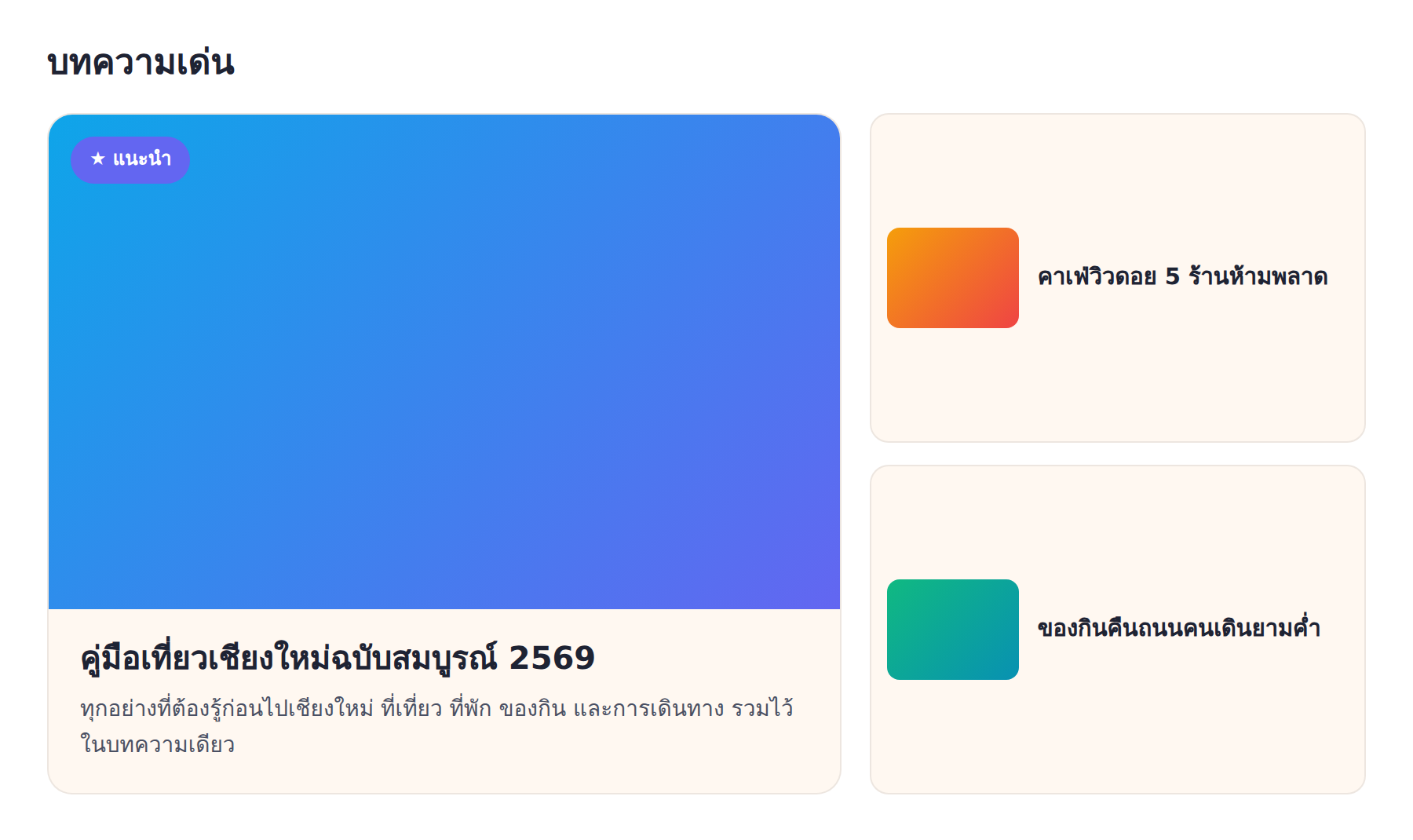
A Featured posts section is a part that shows an important post more prominently than ordinary posts on the homepage. It usually appears as a large card or a highlight that draws the eye, unlike a normal post grid that shows the latest posts in time order. The featured section lets you "choose" which post should sit at the top and stand out most.
The main benefit is controlling what readers see first. A typical blog always shows the newest post first, but sometimes your most important post is not the newest one, such as an introduction post, a main money-making post, or content you want to promote. The featured section solves this by letting you pin an important post so newer posts do not push it out of view over time.
Pinning with a label: a flexible approach
The clever part of the featured section in BlogKub (the magazine template) is pinning with a label. You set a label name for recommended posts (such as "Recommended"), then whenever you want to pin a post, you just go to blogger.com, edit that post, and add the label. The post appears as a featured post immediately.
This approach is very flexible because you manage pinning directly from the Blogger side, without going back to edit the theme. When you want to change the featured post, you just remove the label from the old post and add it to the new one. You can also pin several posts by applying the same label to multiple posts. The first post becomes the large highlight and the rest show below, letting you emphasize several important pieces at once.
How to set up the featured section step by step
- Add or select the Featured block. Select the "Featured posts" block that comes with the template (such as the magazine one), or add it to the homepage.
- Set the heading and pin label. Enter a section heading, and in the magazine template, set a label name for pinning (such as "Recommended"). Leave it blank to always use the latest post.
- Add the label to the post. Go to blogger.com, edit the post you want to pin, and add the label you set. Publish it properly.
- Export the XML and check the result. Click Export, upload it to Blogger, then check that the featured section shows the post you pinned correctly on the homepage.
A smart fallback: never empty
A well-considered detail of the featured section is that if no post carries the label you set, the system shows the latest post as the featured one automatically. This matters a lot, because it means the featured section always has content to show and is never empty or broken even before you pin anything.
Having a fallback like this makes the feature usable from day one. You install the theme and the featured section immediately shows the latest post, then when you are ready, you pin the post you want. It is a design that accounts for the real situation, where users may not have configured everything yet. Instead of leaving the section empty and looking broken, the system fills it with reasonable content.
The featured section and content strategy
The featured section is a strategic tool, not just layout. It lets you control what content you emphasize to new readers. Examples of strategic use: pin an introduction post for new readers, pin a post that converts well, pin seasonal or campaign content, or pin a high-quality post you want to be the face of the site.
Used together with a Hero that welcomes at the top and a post grid that shows general content, the featured section adds another layer of control over what the homepage communicates. You can design the homepage experience to lead readers to the most important content first, which is a purposeful use of homepage space, not just showing posts in chronological order.
The featured section and magazine-style sites
The featured format is at the heart of news and magazine site design, where the homepage is not just posts in time order but has an "editor" choosing which story should be at the top and stand out most. The featured section brings this idea to Blogger, letting you be the editor of your own site, choosing what readers see first, which is control over the homepage's storytelling.
For a site with varied content that wants to look like professional media, arranging one large highlight with secondary posts around it creates a clear visual hierarchy. Readers instantly know which story is most important. This format makes the homepage look managed and more interesting than a grid where every post has equal weight. The featured section is therefore not just a feature but a tool to give your site a print-media identity.
Cautions when pinning
Although the featured section is powerful, there are cautions. First, do not pin the same post for too long so regular readers see it repeatedly on every visit, which makes the homepage feel static and stale. You should review and rotate pinned posts periodically to keep the homepage fresh and moving.
Second, do not pin too many posts so the featured section becomes like a normal post grid. The power of the featured section comes from "choosing" a few pieces that truly matter. If you pin everything, nothing stands out. Limiting the number appropriately and choosing only content with real strategic value lets the featured section do its job fully. Restraint in what you choose is the key to using this feature effectively.
Common problems and how to fix them
You pinned a post but it does not show as featured
Check that the label you entered on the post exactly matches the label name set in the Featured block. They must be spelled the same to pin, and check that the post is published.
The featured section shows the latest post instead of the pinned one
This is fallback behavior. If no post carries the label, the system uses the latest post. Check that you applied the label correctly.
You want to change the featured post
Go to blogger.com, remove the label from the old post and add it to the new one. The change is reflected without editing the theme.
You do not see the pin label option
The pin-by-label option is in the magazine template. If you use another template, the featured section may show the latest post according to that template's design.
Best practices
- Set an easy-to-remember pin label, and spell it the same in the block and the post.
- Pin strategically important posts, such as an introduction post or content you want to promote.
- Use pinning of several posts to emphasize several important pieces, with the first as the large highlight.
- Review pinned posts periodically, updating them to match campaigns or seasons.
- Use it together with a Hero and a post grid to design the homepage purposefully.
Wrapping up
The featured section is a strategic tool that lets you control which content should stand out on the homepage, instead of always letting the newest post go first. With BlogKub you can pin a recommended post with a label, managing it directly from the Blogger side, pin several posts with the first as the large highlight, and if you have not pinned anything, the system uses the latest post automatically so the section is never empty. Used strategically with a Hero and a post grid, the featured section lets you design the homepage to lead readers to the most important content, a purposeful use of homepage space that boosts the results you want.
Frequently asked questions (FAQ)
How do you pin a featured post?
In the magazine template, you set a label name for recommended posts (such as 'Recommended'), then go to blogger.com, edit the post you want, and add that label. That post appears as a featured post immediately. You can pin several posts, with the first shown as the large highlight.
What happens if I do not pin any post?
If no post carries the label you set, the system shows the latest post as the featured one automatically. So the featured section always has content to show and is never empty.
Where does the featured section pull its data from?
It pulls from Blogger's post feed, filtering by the label you set (if any), then displays the cover image, title, and post details as a highlight. It updates automatically when you pin or publish a post.
How many posts can I pin?
You can pin several posts by applying the same label to multiple posts. The first post shows as the large highlight and the rest show below, helping you emphasize several important pieces.
What kind of blog is the featured section good for?
It suits blogs with important posts you want to stand out above ordinary ones, such as news blogs, magazines, or any site with a main post you want pinned at the top so newer posts do not push it out of view.