How to build a dismissible announcement bar in Blogger
Sometimes you have something important you want every reader to see first, a promo, a new article, or a notice. A top announcement bar is the best place, because it is the first thing the eye reaches. This article teaches you how to add one to a Blogger theme with BlogKub, with a CTA link, color choices, and a reader-dismissible bar that remembers.
Quick summary: add the announcement bar block in BlogKub, add text, a CTA link, and choose a background color, then Export the XML and upload it to Blogger. You get a full-width bar at the very top above the header. Readers can dismiss it and the system remembers (based on the text). When you change to a new announcement, the bar shows to everyone again.
What an announcement bar is, and why it works
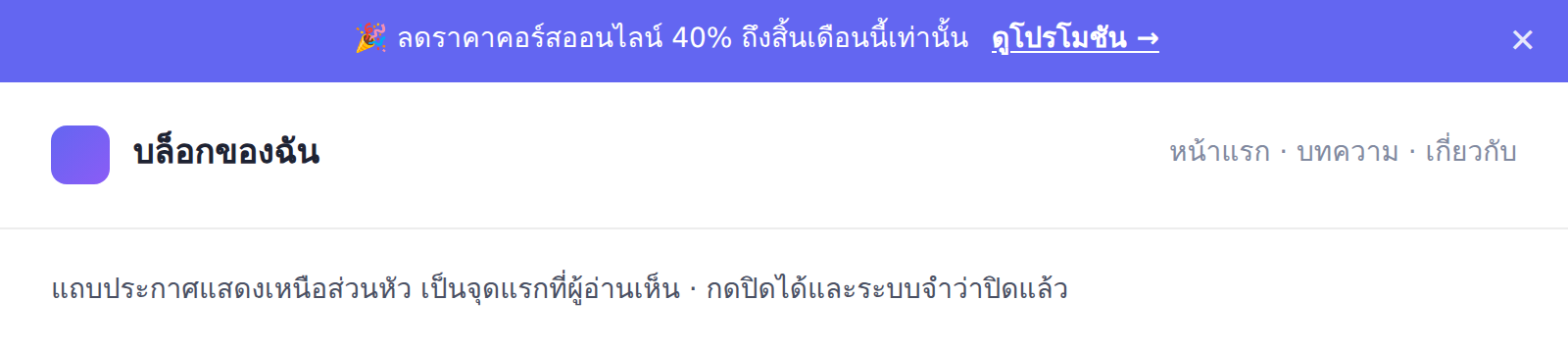
An announcement bar is a full-width horizontal bar at the very top of the site, above the header and menu. It shows a short message you want every reader to see before anything else. With its prominent position and a background color that contrasts with the content, this bar catches the eye the moment the page finishes loading.
The reason it works is that it relies on "visual order". Readers usually sweep from top to bottom, so what is at the top is always seen first. When you have time-limited or especially important information, such as a promo about to end, placing it in the announcement bar guarantees it will not be missed, unlike burying it mid-page where readers may scroll past.
The highlight: dismissible and smart remembering
What separates a good announcement bar from an annoying popup is respecting the reader. BlogKub's announcement bar has a close button on the right. When a reader dismisses it, the system remembers in the browser that they closed this announcement, so the bar does not return to bother them on later visits. This is a key difference: an announcement that cannot be closed or keeps popping back is annoying and drives readers away.
Smarter still, the system remembers the dismissal based on the announcement text. That means when you change the text to a new announcement, the system treats it as a different one and shows it to everyone again, even those who dismissed the old one. This mechanism lets you use one bar to announce various things over time, with readers seeing only announcements they have not dismissed, with no worry that people who dismissed one will miss the new news.
How to add the announcement bar in BlogKub, step by step
- Add the announcement bar block. Open the left block library and drag the "announcement bar" block in, usually placed at the very top of the structure so it shows above the header.
- Add text, a link, and a background color. Type the announcement text. For a CTA, add link text and a URL, and choose a background color to match your brand or stand out as you wish.
- Export the XML and upload. Click Export, then take the file to blogger.com → Theme → three-dot menu → Backup/Restore → select the XML file.
- Test dismissing and remembering. Open the live site, check the bar shows at the top, click the close button, then refresh to confirm the bar does not return. Then try changing the text and re-exporting, to see the new announcement show again.
Add a CTA link: turn the announcement into a next step
The announcement bar is even more powerful with a link to click. Instead of just telling news, you can add link text like "See the promo", "Read the article", or "Sign up now" with a destination URL, turning the bar into a channel to take readers to the page you want, whether a promo page, an important article, or a follow channel.
A clear CTA in the announcement bar raises the chance of the action you want. Think of the announcement bar as the most valuable ad space on the site, because everyone sees it first. Using it to guide readers toward a clear goal is more worthwhile than leaving it a floating message. That said, keep the text concise and the CTA on-point, because the bar space is limited.
Choose a color and write effective text
The bar's background color affects both its prominence and the mood of the announcement. A bright color like a brand or accent color makes the bar catch the eye, good for a promo or exciting news, while a calm dark color suits a formal notice. Choose a color where white text reads clearly and does not blend with the header until they are indistinguishable.
For the text, the principle is "short, clear, and giving a reason to care", because the bar has limited space and readers spend only a fraction of a second on it. Write the point in one sentence, emphasizing a benefit or urgency, such as "30% off until the end of the month only", which is better than "We have a special promotion for customers", which is longer and less motivating. A small emoji can add eye-catch, but use it in moderation.
Examples of using the announcement bar
- Promo announcement: "40% off the online course until the end of the month, click to see", with a link to the course page.
- Highlight a new article: "New article: 10 tips to rank your blog on Google's first page", linking to the article.
- Follow invite: "Follow our new channel so you do not miss updates", linking to a page or channel.
- Important notice: announce a change, event, or news readers should know first.
Notice every case is "temporary and important", which suits the most prominent top space. When an announcement expires, you just change the text or turn off the block, and the site returns to normal.
A caution: use it only when needed
The power of the announcement bar comes from its prominence, but if there is always a bar with nothing genuinely important, readers begin to ignore it, like we scroll past ads automatically. This is called "banner blindness". To preserve the bar's power, use it only when there is something worth announcing.
Also be careful not to let the bar crowd out the main content too much, especially on mobile with a small screen. Concise text and an easy-to-use close button let the bar do its job without disrupting the reading experience. Used in moderation with a clear goal, the announcement bar is an effective communication tool, not a nuisance.
The announcement bar vs a popup: why the bar is friendlier
Many sites use a mid-screen popup to announce something important, which works for grabbing attention but creates high annoyance because it covers the content and forces readers to close it before reading on. Google itself has guidance discouraging popups that cover content on mobile, which can affect the experience and rankings. A top announcement bar is a much gentler alternative, because it sits above the content without covering it. Readers see it but can keep reading immediately without clicking anything.
This is a reader-first design philosophy. Communicating something important does not have to be aggressive or interrupting. The announcement bar proves you can present prominent information while still respecting the reading experience. When readers feel your site does not bother them too much, that good feeling carries over to the overall image and willingness to return.
Common problems and how to fix them
The announcement bar does not show
Check that you added the announcement bar block and Exported again. If you previously dismissed an announcement with the same text on this browser, the system remembers the dismissal. Try in incognito mode or change the text to test.
You dismissed it but it returns every time
Normally the system remembers the dismissal in the browser. If the browser blocks storage (such as some private modes), the remembering may not work. Test in normal mode to confirm.
You changed the text but people who dismissed do not see the new one
In principle, when the text changes, the system treats it as a new announcement and shows it again. If it does not, check that you Exported and uploaded the theme with the new text.
Best practices
- Use the announcement bar only for important, time-limited matters, to preserve its power to draw the eye.
- Write short, concise text emphasizing a benefit or urgency.
- Add a clear CTA link to take readers to the goal.
- Choose a prominent color where the text reads easily and is clearly separate from the header.
- Change or remove the announcement when it is no longer important, so readers do not tune out the bar.
Wrapping up
The top announcement bar is the most prominent communication space on the site, ideal for important, temporary matters you want every reader to see first. With BlogKub, you just add the announcement bar block, add text, a CTA link, and a background color, and Export it. Readers see the bar at the top and can dismiss it, with the system remembering based on the text. When you change to a new announcement, the bar shows to everyone again. This reader-respecting mechanism makes the announcement bar an effective communication tool. Used in moderation with a clear goal, it helps your important news reach readers without becoming a nuisance.
Frequently asked questions (FAQ)
Where does the announcement bar show?
As a full-width bar at the very top of the site, above the header, so it is the first thing readers see, ideal for announcing something important like a promotion, news, or a follow invite.
Can readers dismiss the announcement bar?
Yes. The bar has a close button on the right. When a reader dismisses it, the system remembers in the browser, so the bar does not return to bother them on the next visit, until you change the announcement text.
If I change the text, does the bar reappear for people who dismissed it?
It reappears, because the system remembers the dismissal based on the announcement text. When you change the text to a new announcement, the system treats it as a different announcement and shows it to everyone again, even those who dismissed the old one.
Can I put a button or link in the announcement bar?
Yes. You can add link text and a URL to make a CTA in the bar, such as 'See the promo' or 'Read more', so the bar not only tells news but takes readers to the page you want.
What is the announcement bar good for?
Temporary announcements you want seen first, such as a promo, an event, an important new article, a change notice, or a follow invite, because it is at the very top and prominent. But use it only when needed, so readers do not feel bothered.